There’s nothing more frustrating than launching your favorite game only to be hit with a pop-up error: Missing DLL file or DLL not found. If this sounds familiar, you're not alone — DLL errors are incredibly common in the gaming world, especially on Windows.
Luckily, most DLL errors can be fixed without tech skills or deep system knowledge. This guide walks you through proven solutions that are fast, simple, and effective to get you back in the game.
Step 1: Restart Your PC
It might sound basic, but many temporary glitches that cause DLL errors can be resolved by simply restarting your computer. If your system recently updated or a file was stuck during installation, a reboot can clear it up instantly.
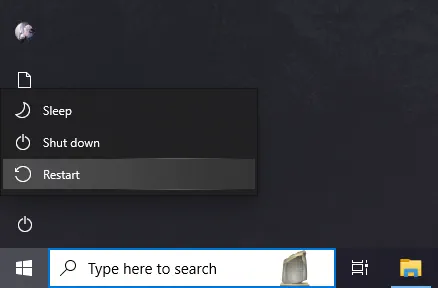
Step 2: Run Your Game as Administrator
Some games require elevated permissions to access protected system resources, particularly DLL files. Without these permissions, the game may fail to load essential components and encounter errors.
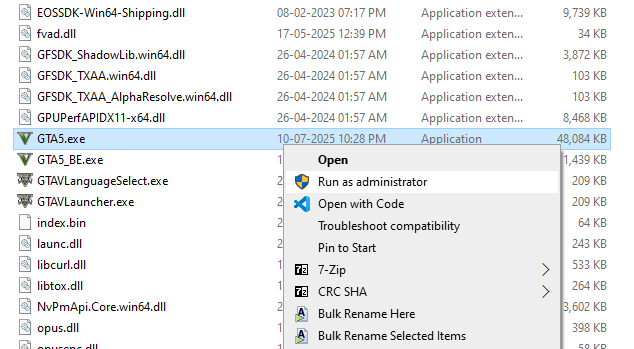
To resolve this, simply right-click on the game’s shortcut or executable (.exe) file and select Run as Administrator. This quick and easy step can often fix permission-related DLL issues instantly.
Step 3: Install Visual C++ Redistributables
Many DLL errors occur because your system is missing Microsoft Visual C++ Redistributables, which are essential runtime components required by most games. These redistributables ensure compatibility with different game engines and applications.
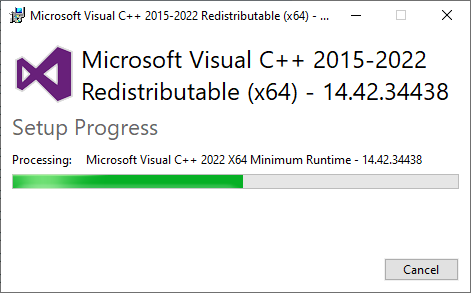
To fix this, visit Microsoft’s official website and download both 32-bit and 64-bit versions of the redistributables. It’s recommended to install all versions from 2005 to 2022 to ensure your system can run a wide range of games without issues.
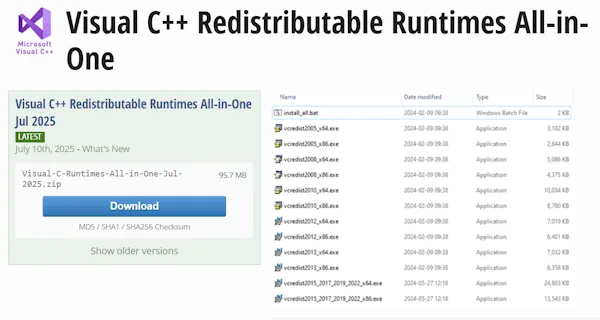
For a faster solution, consider using the All-in-One Installer by TechPowerUp, which bundles every version into a single download. This tool streamlines the installation process by automatically installing all necessary packages with just one click.
Once you've installed the redistributables, make sure to restart your PC to apply the changes and resolve any remaining DLL-related errors.
Step 4: Update DirectX Runtime
Many games rely heavily on DirectX for rendering graphics and sound, and missing or outdated DirectX files, such as d3dx9_43.dll or x3daudio.dll can easily lead to DLL errors.
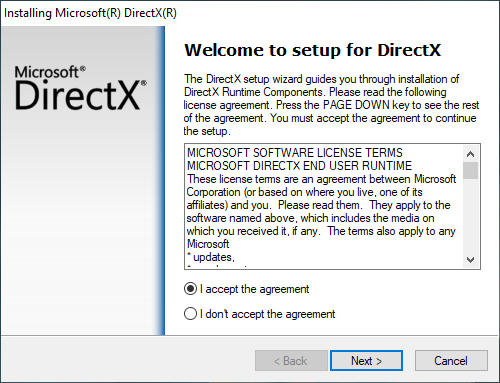
A quick and effective fix is to download the DirectX End-User Runtime Installer from Microsoft’s official website and run it. This will repair or replace any missing DirectX files. The process is simple, works across all versions of Windows, and often resolves these issues in just a few minutes.
Step 5: Update Your GPU Drivers
Outdated or corrupted graphics drivers are a common cause of DLL-related crashes in games and applications. To avoid these issues, it's important to keep your drivers up to date. You can download the latest drivers directly from the official websites of your GPU manufacturer: NVIDIA, AMD, or Intel.
When installing, look for the option to clean install or perform a factory reset to ensure that any older driver files, which might conflict with DLLs, are completely removed.
Optional Advanced Fixes: If Problems Persist
If none of the steps above worked, try these advanced solutions:
- Run System File Checker: Open Command Prompt as admin, and type sfc /scannow to repair corrupted system files.
- Reinstall the game: Corrupted installs may fail to register required DLLs.
- Scan for malware: Malware can damage or replace DLL files with malicious versions.
- Use System Restore: If you recently began experiencing DLL issues, revert to a previous restore point.
Frequently Asked Questions
Q: Can I just download a DLL file from a random site?
A: No. It’s risky. Use official sources like Microsoft or game
installers.
Q: Why do I need both 32-bit and 64-bit redistributables?
A: Even on 64-bit systems, some games are still built on 32-bit
architecture and require the corresponding DLL files.
Q: How often should I update Visual C++ and DirectX?
A: At least once every 6–12 months, or when a new game fails to
launch due to a missing component.
Final Thoughts: Don't Let DLL Errors End Your Game
DLL errors may seem intimidating, but with the right steps, they’re surprisingly simple to fix. From restarting your PC to updating essential runtimes and drivers, these quick fixes resolve the vast majority of game-related DLL issues. Remember:
- Don’t download random DLLs from unknown websites — it’s risky and often ineffective.
- Always install official runtime libraries like Visual C++ and DirectX.
- Keep your GPU drivers and system updated to avoid future compatibility problems.
By following this guide, you’re not only solving today’s DLL error — you're future-proofing your gaming system for smooth, crash-free gameplay.
So go ahead, apply these fixes, and get back to what matters most: playing and enjoying your games without interruption.
Last updated on January 1, 2026